
How to restrict sending leads by IP and fingerprint
To reduce the number of repeated and unwanted leads, quizzes feature IP address and fingerprint blocking, which helps collect only the necessary leads.
IP blocking
An IP address is a device's address on the Internet. If requests are often sent from a single IP address, you can restrict the ability to send them.
Automatic spam protection
Marquiz has a restriction on sending leads from a single IP address: no more than 4 applications in 4 quizzes in 20 minutes, and for test applications — no more than 10 applications in 5 quizzes in 10 minutes.
If the limit is exceeded, the system will temporarily restrict the sending of leads from that IP address.
How to block an IP address manually
- Go to "Account Settings."
- At the bottom of the page, find the section "IP Address Blocking."
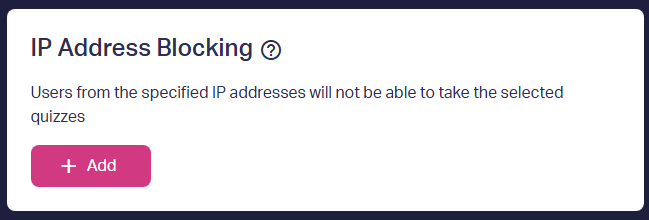
- Click "Add" and enter the IP address.
- Click "Block."
After that, the user will be able to open and complete the quiz, but will not be able to send the lead while their IP address is blocked.
To remove an address from the block list, click on the recycle bin icon next to the desired IP, or select several addresses and click the "Delete" button.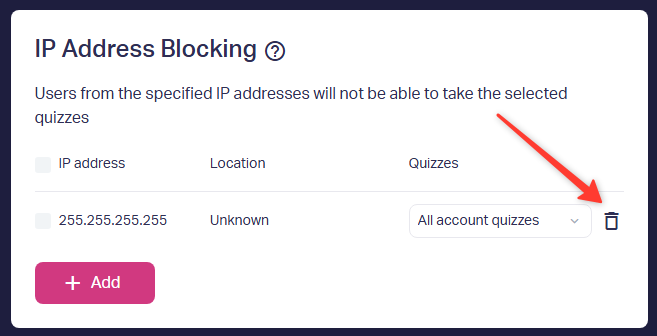
Blocking by fingerprint
A fingerprint is a unique digital identifier for a device and browser. It allows you to identify a device even when the IP address changes.
Fingerprint blocking works in a similar way:
- Go to "Account Settings."
- At the bottom of the page, find the section "Fingerprint Blocking."
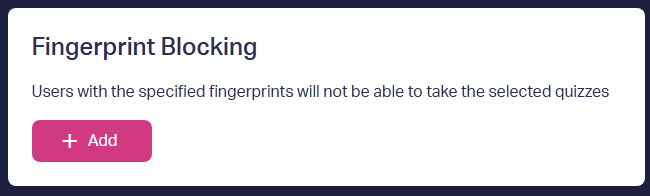
- Click "Add" and enter the fingerprint.
- Click "Block."
Now the user will not be able to send an lead in the quiz from this device, even if they change their IP address.
If you need to unblock it, you can delete the fingerprint by clicking on the recycle bin icon next to it or select several values and click the "Delete" button.
How to block a user inside an lead
- Open the desired lead in the Marquiz account.
- At the bottom of the lead, click:
— "Block this address" — to add an IP address to the block list;
— "Block this fingerprint" — to block a device.
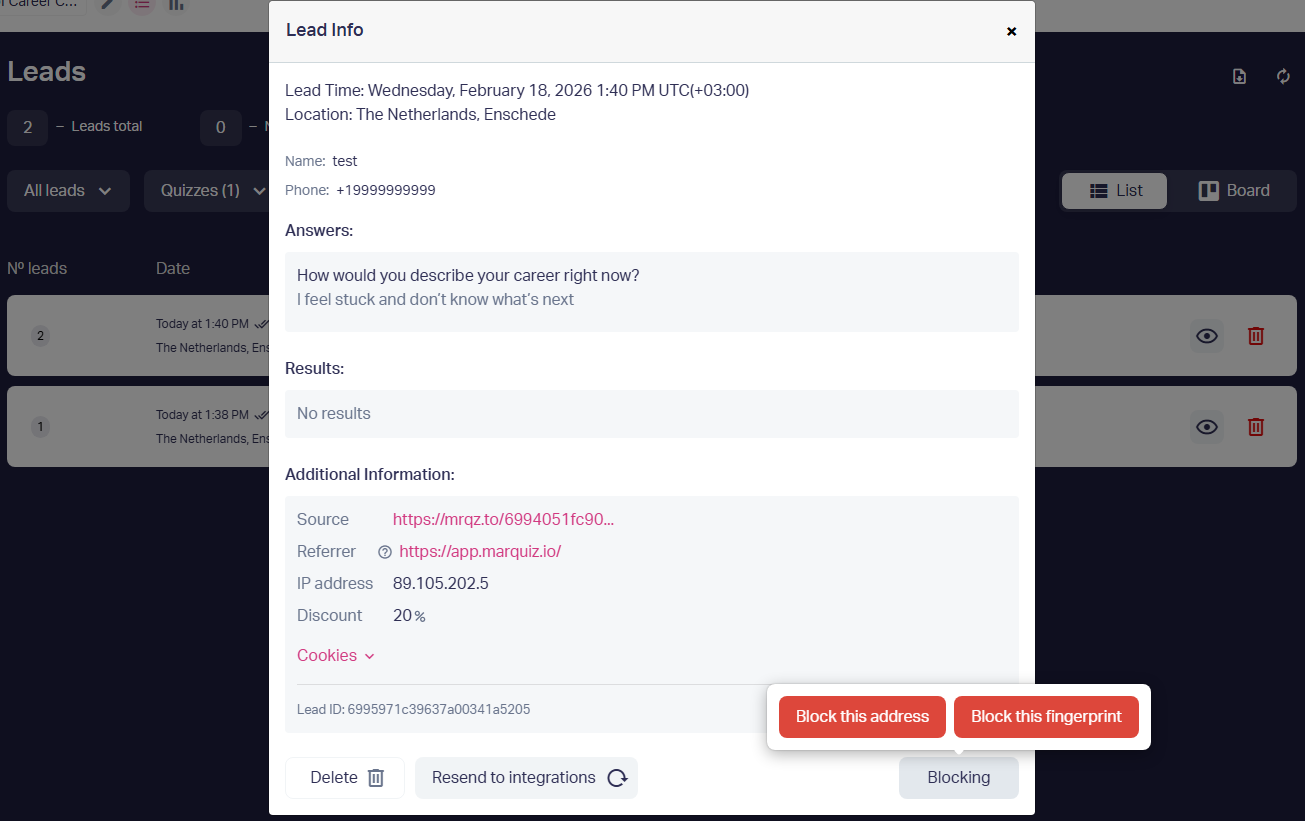
The data will be automatically added to the block list on the "Account Settings" page.
Done!
Now blocked users will not be able to send leads in your quizzes.
Which blocking option to use
— Use IP if you see a lot of leads from one address and the IP doesn't change.
— Fingerprint is good if the user changes their IP, uses a mobile network or VPN, or you need to restrict a specific device.