
Discounts and perks in the quiz
Perks and discounts help motivate users to complete the quiz and provide their contact information. You can offer a discount during the quiz or provide a perk upon completion — such as a catalog, checklist, or guide.
All settings are configured in the “Extensions” section.
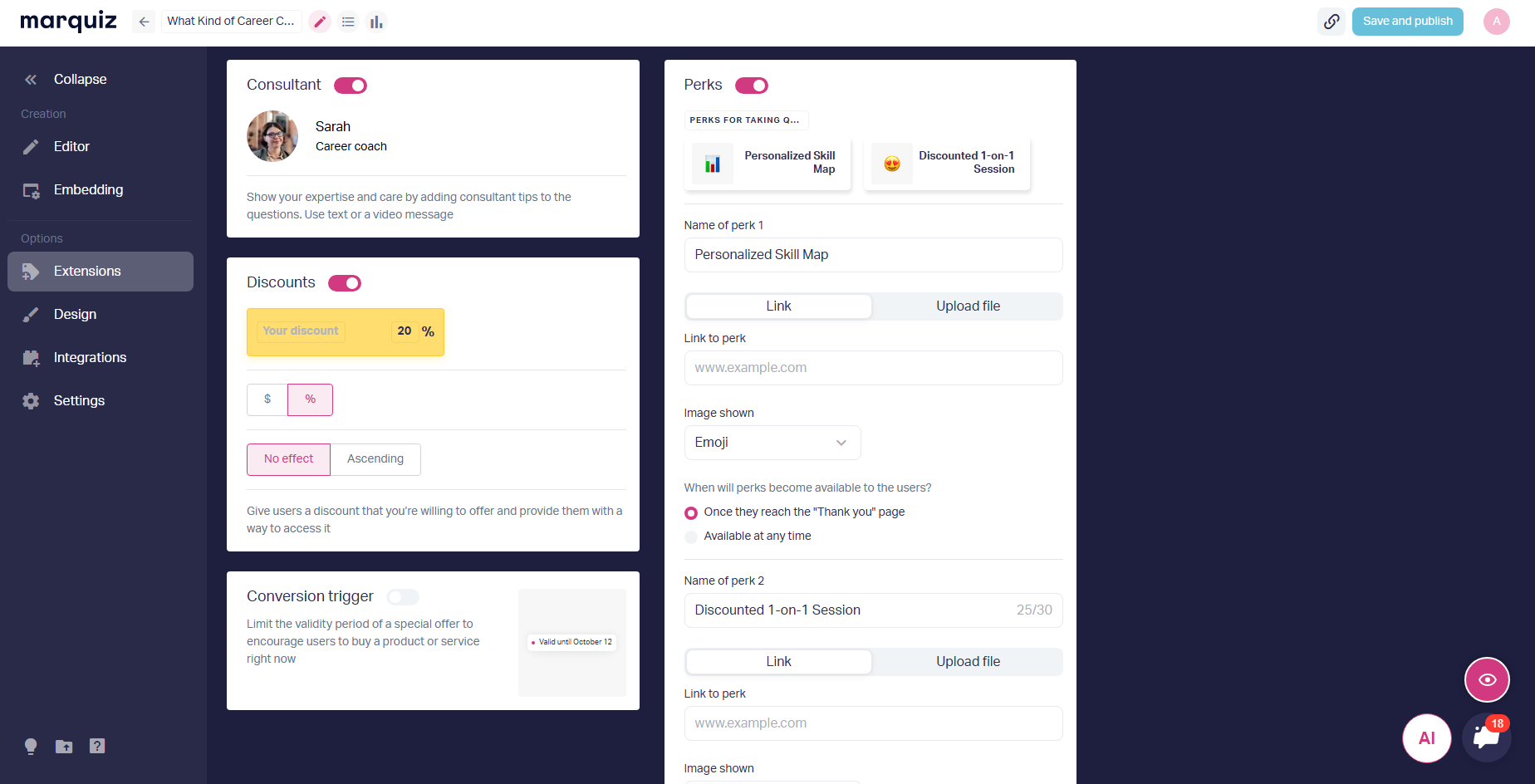
1. Set up a discount
You can set up a discount as a percentage or as a specific amount.
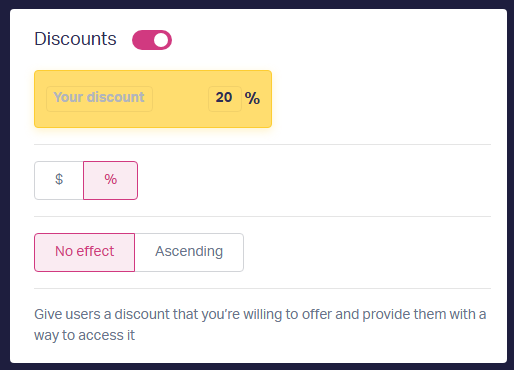
When selecting a cash value, you can set a descending or ascending discount.
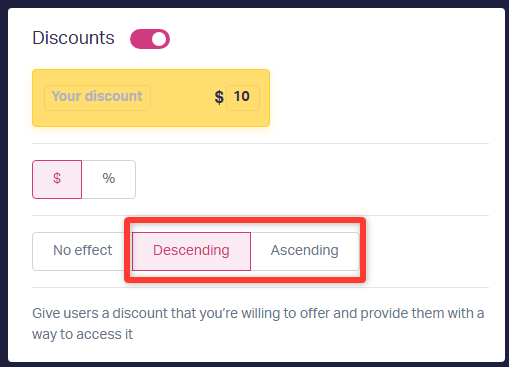
The ascending discount will increase as you move on to the next question. The descending discount will decrease throughout the quiz.
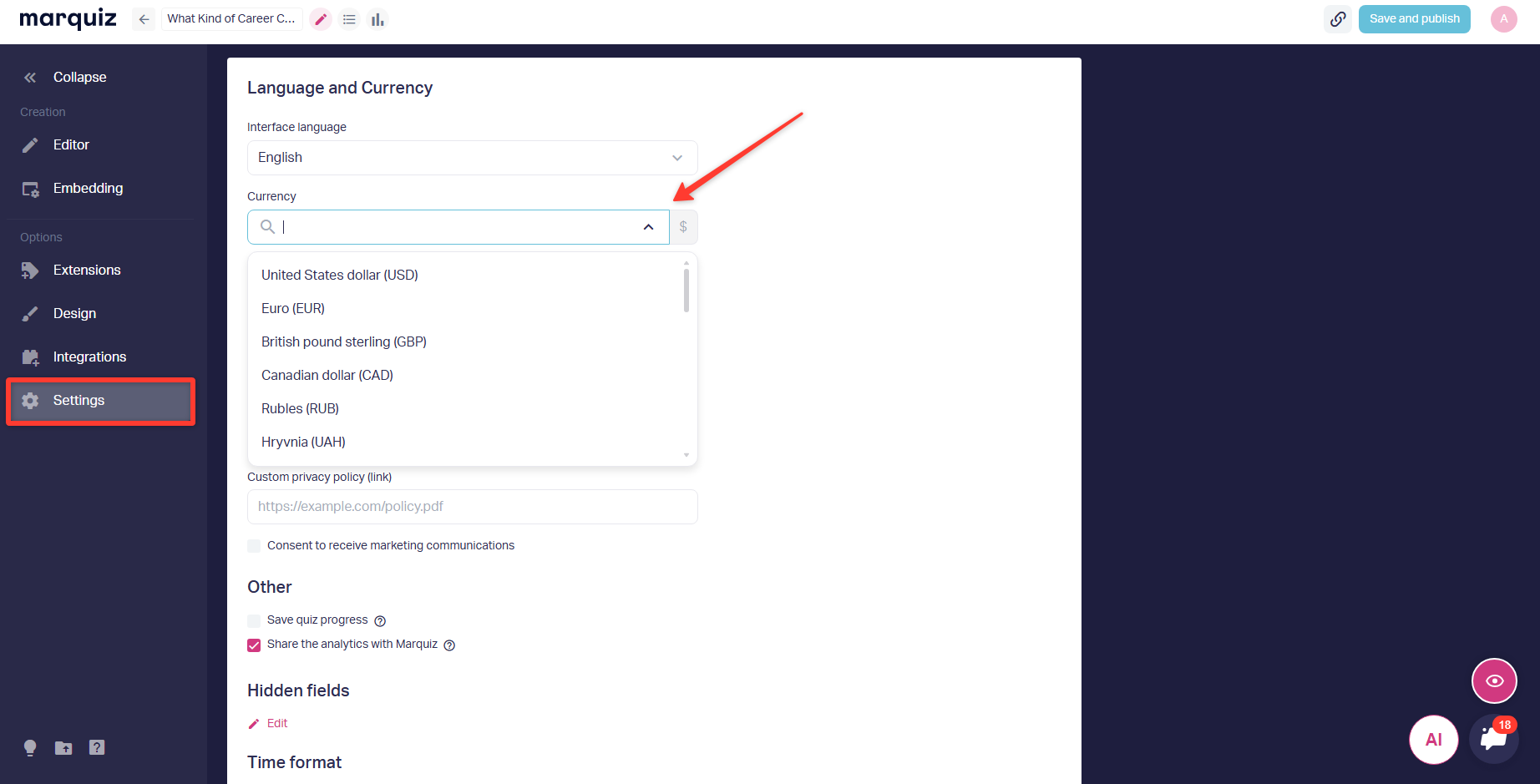
You can select the currency in which the discount will be displayed in the “Settings” section—this will be the currency for the whole quiz. You cannot remove a currency from the quiz, but you can enter a custom value for it or leave the field blank, in which case it will not be displayed.
The “No Effect” discount will be displayed in full at all steps of the quiz.
In addition to a discount for the whole quiz, you can set a discount for each result separate (if a price is written in the result).
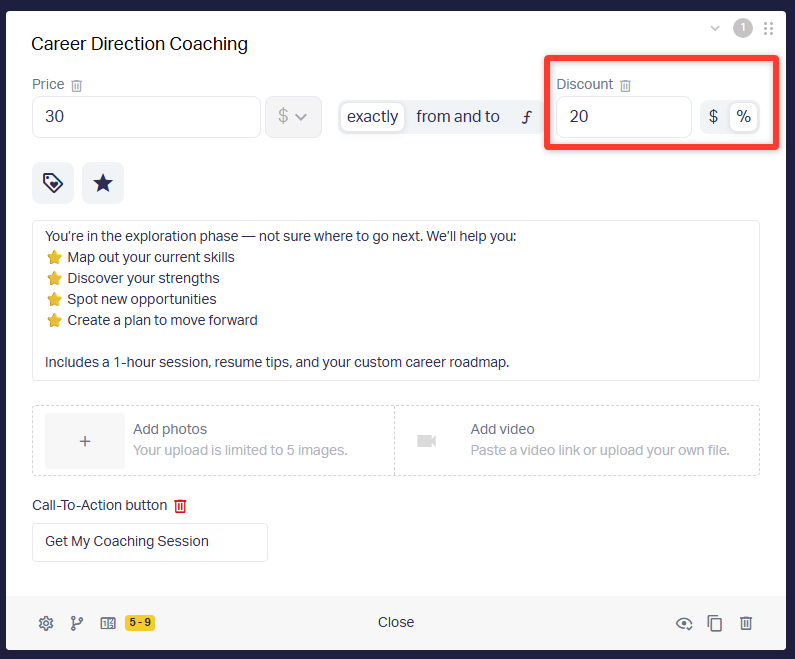
If the resulting discount is greater than the quiz's base discount, the discount amount displayed in the questions will be up to {base discount amount}.
If the base discount amount is greater than the resulting separate discount amount, the information displayed in the questions will be up to {base discount amount}.
2. Let’s move on to setting up the perk
You can add up to two perks to the quiz in two ways:
- provide a link to a file hosted on a website or in the cloud;
- upload the file directly to the quiz.
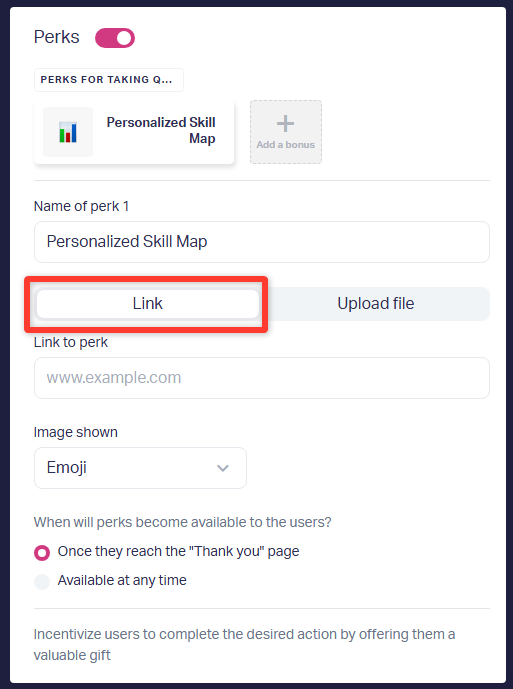
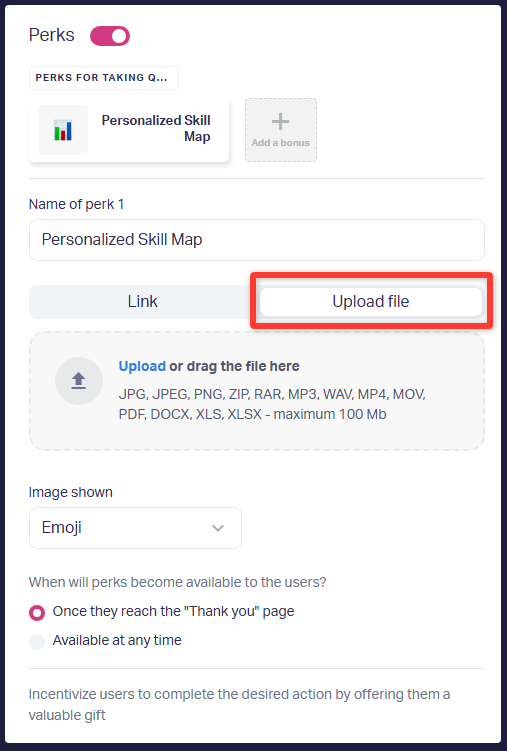
When adding a link, check the document's access settings to ensure that users can finally open the perk.
Uploading a file is convenient if you don't have a separate storage space for the perk.
File restrictions:
- maximum file size: 100 MB;
- supported formats: PDF, JPG, PNG, ZIP, RAR, MP3, WAV, MP4, DOCX, XLS.
If different perks look the same when configured in the quiz, delete both perks, save the quiz, and reconfigure the perks.
When the perk will be available:
- only on the “Thank You” page after completing the quiz, or on the results page if it appears after the form;
- always — the user can unlock the perk in the quiz at any step.
All set!
Now users can receive a perk after or during the quiz: by clicking a link or downloading the file you uploaded.