
Audience segmentation in a quiz
Segments automatically assign customers based on their quiz answers. Depending on the segment, the customer sees their own set of questions, results, Contact form, or Thank you page.
For example:
- The customer selects "For business" → enters the "Wholesale" segment → sees wholesale results
- The customer selects "For myself" → enters the "Retail" segment → sees retail results
Creating segments
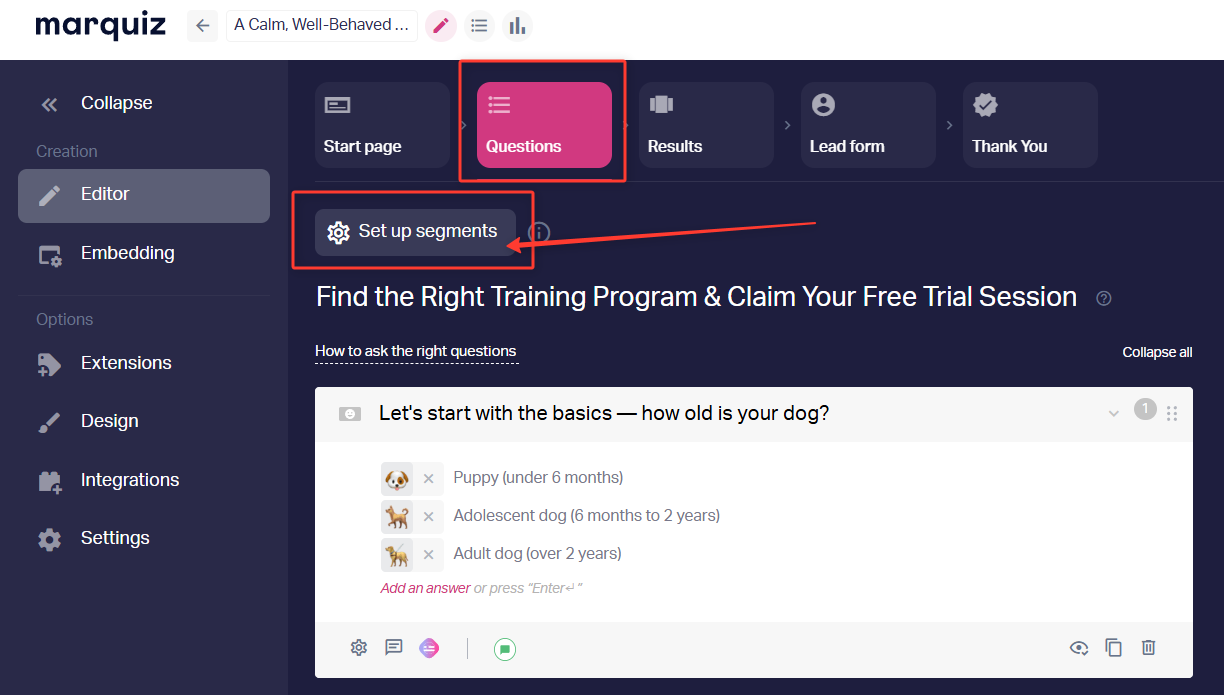
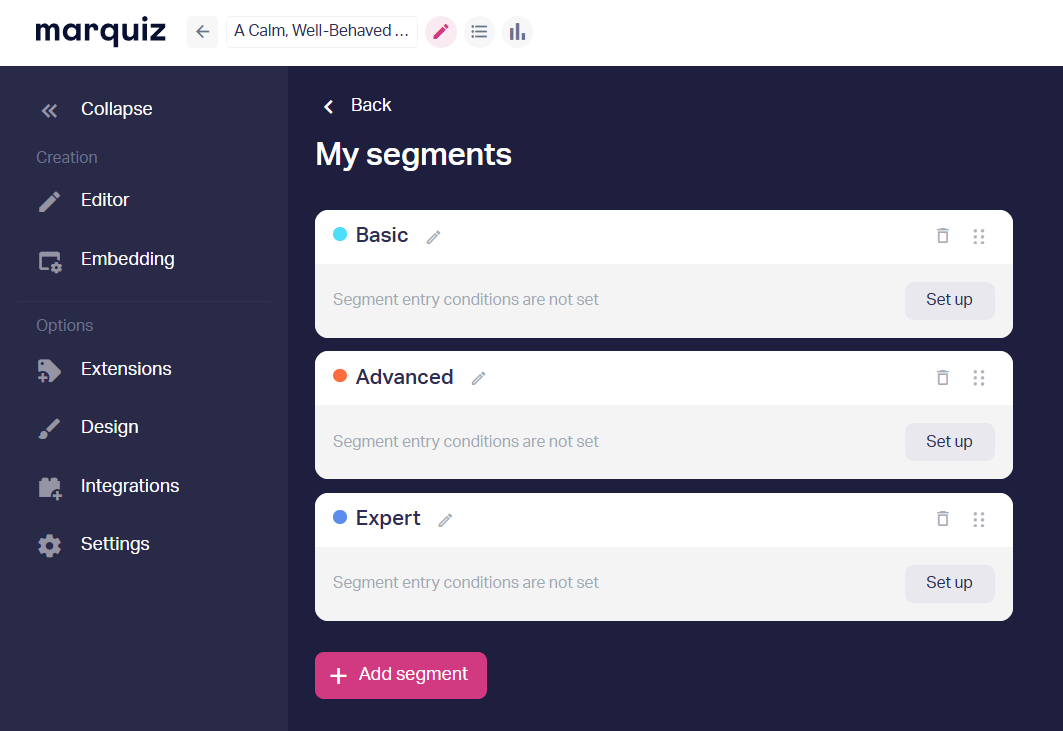
1. Open the quiz and go to the Questions block.
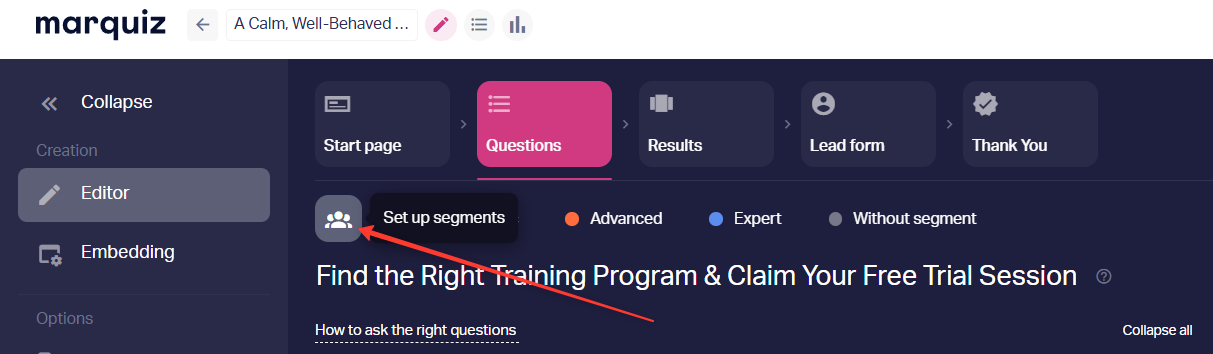
2. At the top of the block, click "Set up segments". The same button appears in the Results, Products, Contact form, and Thank you page blocks.
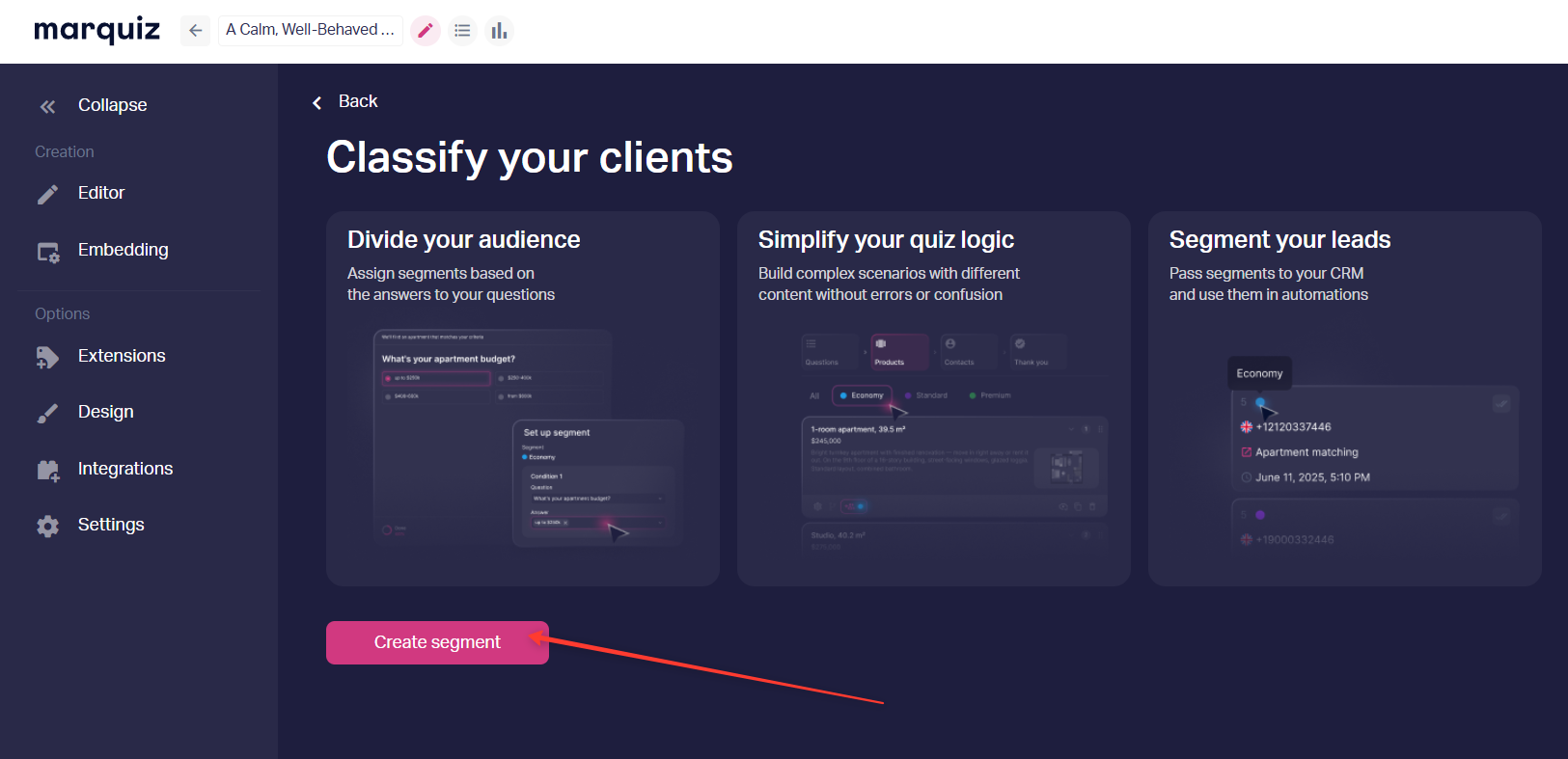
3. Click "Create segment".
4. Enter the segment name. If you do not rename it, it stays "New segment".
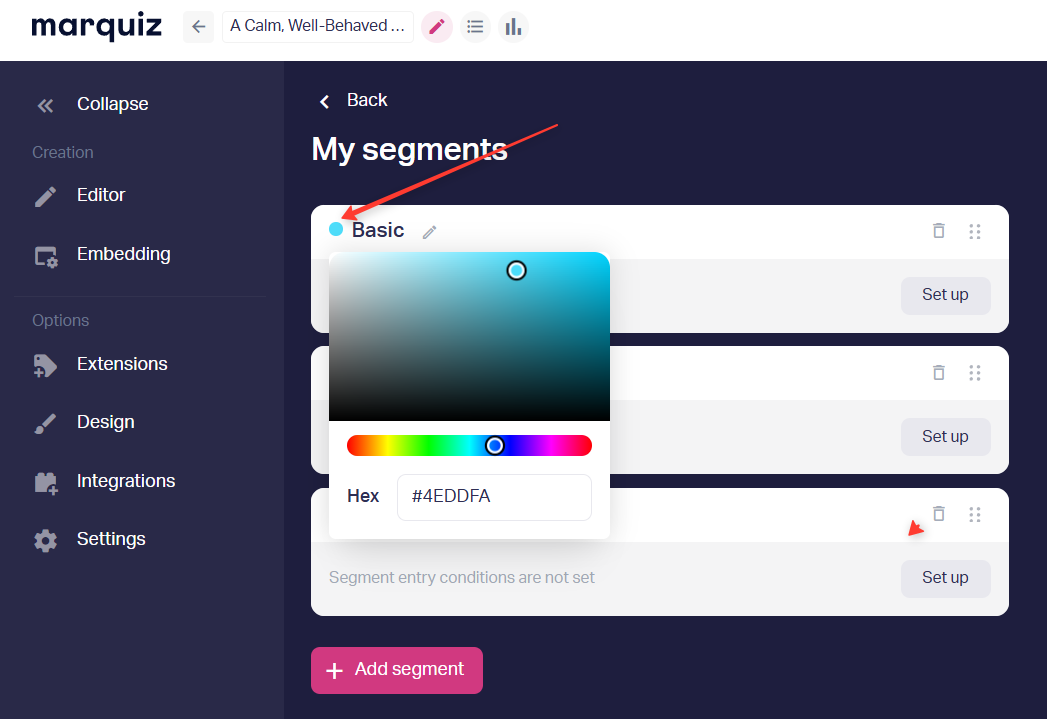
5. Choose a segment color. Click the color next to the name and pick one from the palette.
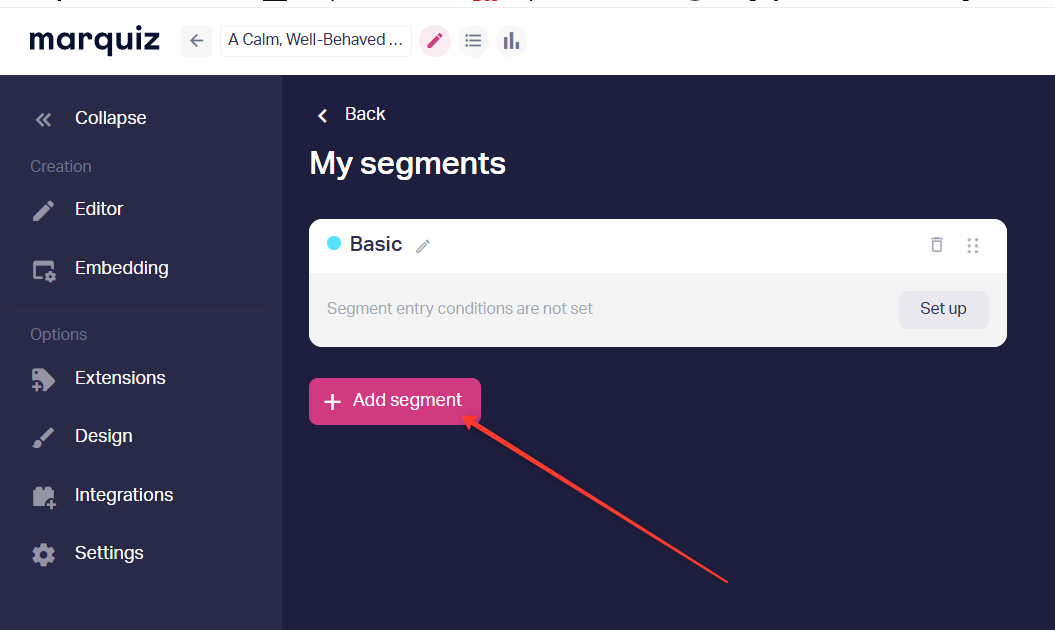
6. If needed, add more segments with "Add segment". You can create as many segments as you need.
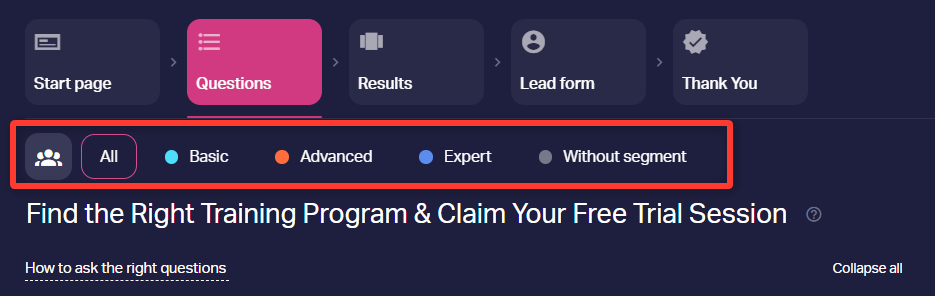
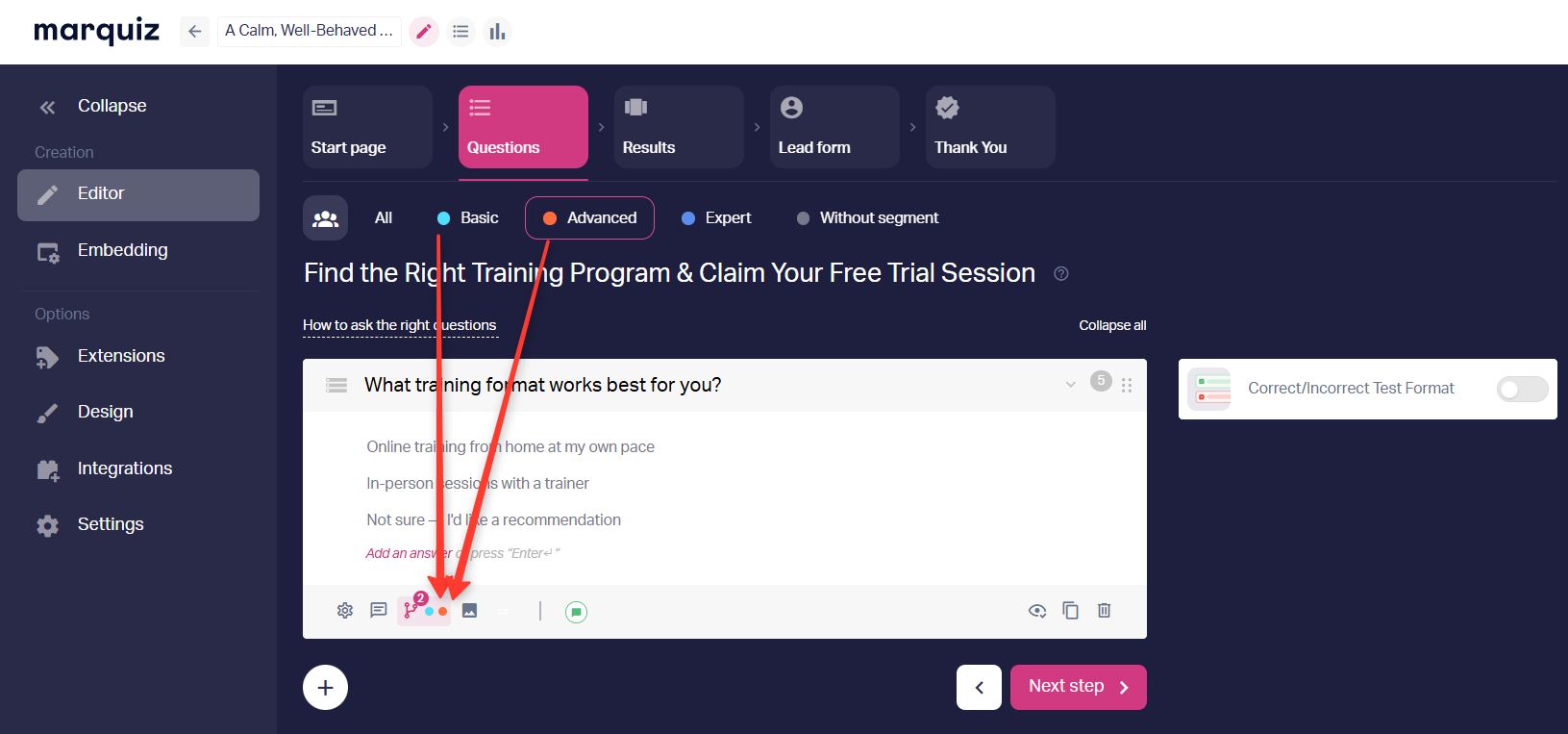
At the top of the Questions, Results, Contact form, and Thank you page blocks, filters appear:
All — selected by default
Without segment
Created segments
Setting segment entry conditions
7. On the segment card, click "Set up segments" → "Configure".
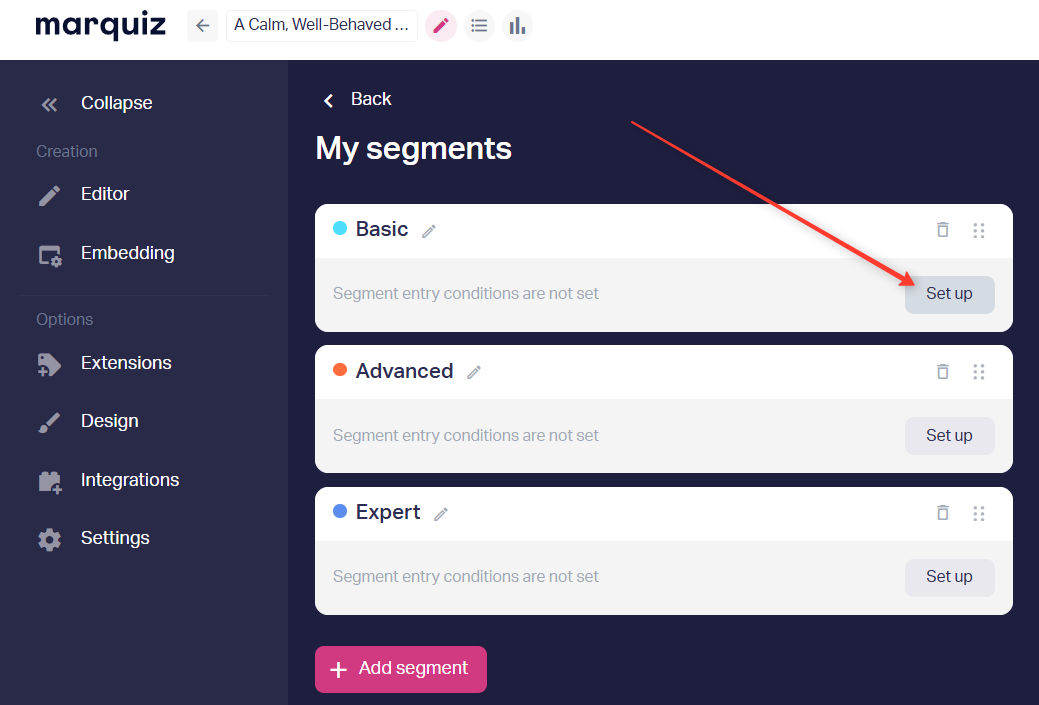
8. Select the questions and answers that assign the customer to the segment. You can add multiple conditions.
9. Choose the logic:
"Require all conditions" — the customer must match every answer
"Require at least one condition" — any single match is enough
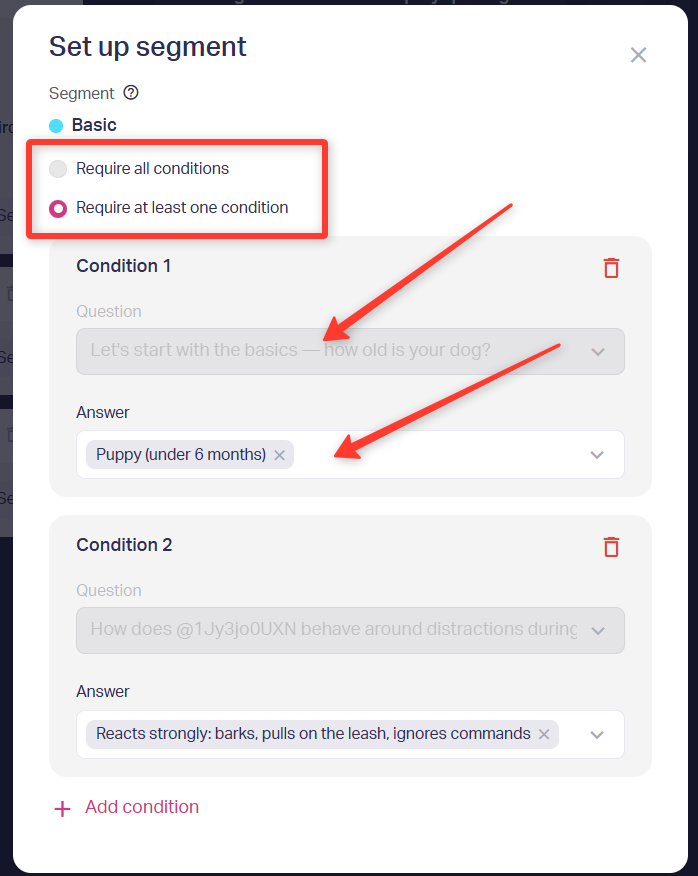
10. Close the settings window and save your changes with the "Save and publish" button in the top-right corner.
The segment card will show the selected logic, questions, and answers:
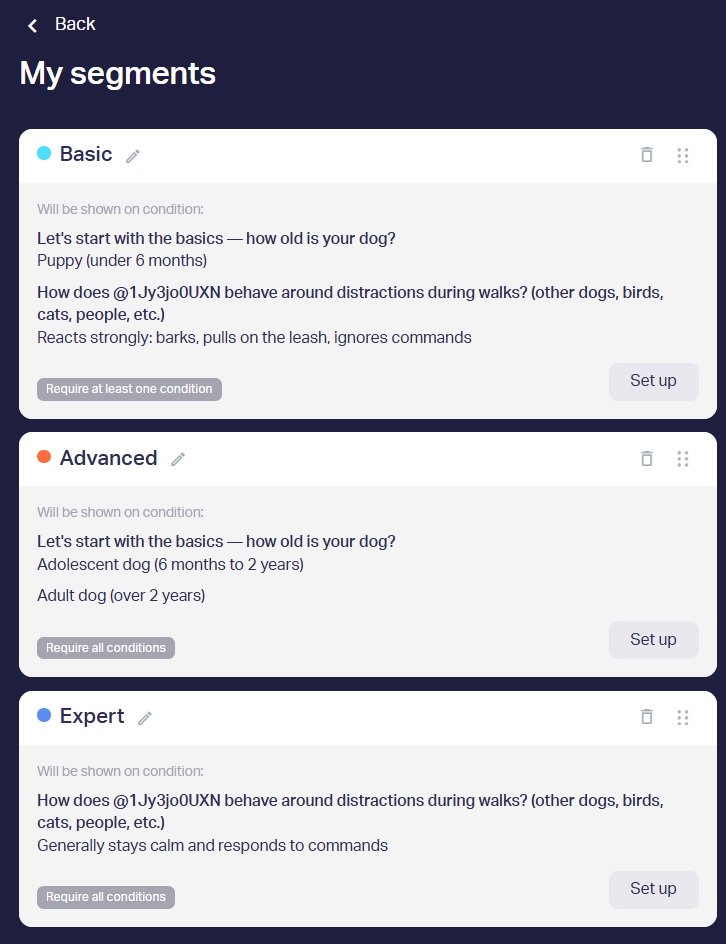
Assigning segments to questions and other blocks
11. Open the display settings for the block you need.
12. Select one or more segments that should see the block.
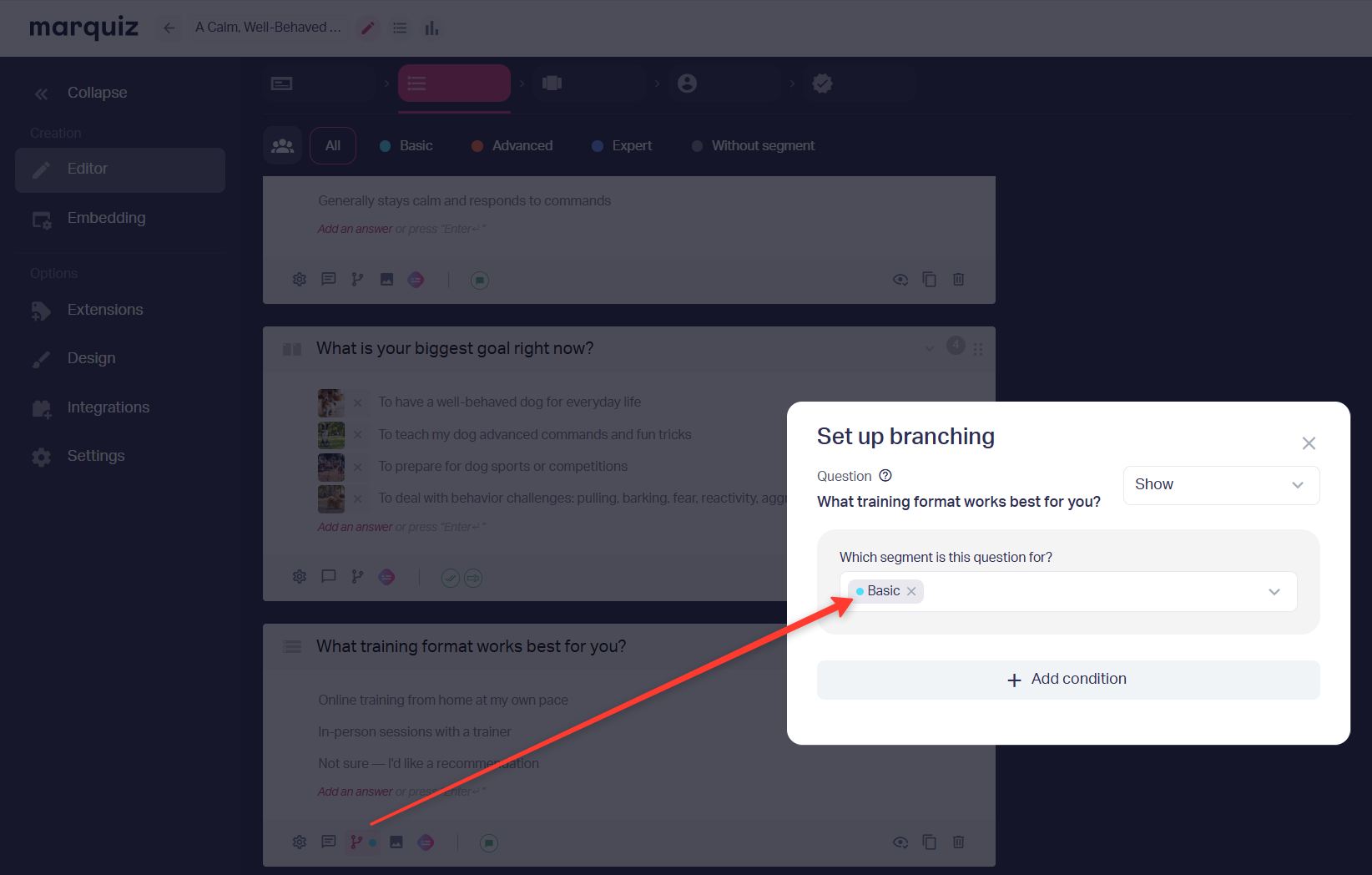
13. If needed, add regular branching conditions and optionally use "Show" or "Hide" — they work with segments too.
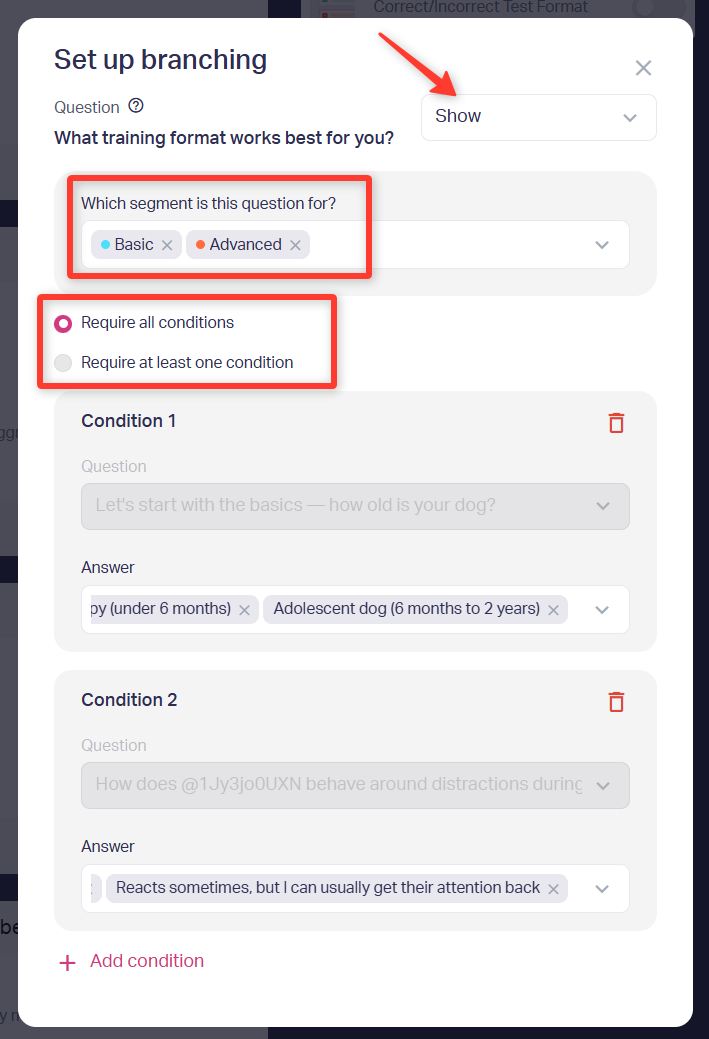
If multiple segments are selected, the customer must belong to all of them for the block to appear.
Example: a result has the "Wholesale" and "New York" segments. Only someone in both segments will see that result.
You can combine segments with regular branching: the quiz checks the segment first, then applies branching conditions.
The "All conditions are required" and "At least one condition is required" options in this window apply only to regular question display conditions and do not affect segment conditions.
Segment filter tabs at the top of the list work like a regular filter: when you select a segment, only blocks linked to it are shown.
Saving segment data to leads
When someone completes the quiz, all segments whose conditions they matched are saved.
In the Leads section, triggered segments appear under the lead number. Hover over the marker to see the segment name.

That's it. Segments are set up: the right blocks show to the right audience, and the lead shows which segment the customer entered.
Important notes
- You cannot set question visibility by segment if that question is used to define the segment itself
- If a question intended for a specific segment is placed above the question that defines that segment, the former will be shown to all customers without segment filtering
For details on setting up question branching, see How to Setup Logic branching